
Monday, February 14, 2011

Sunday, February 13, 2011
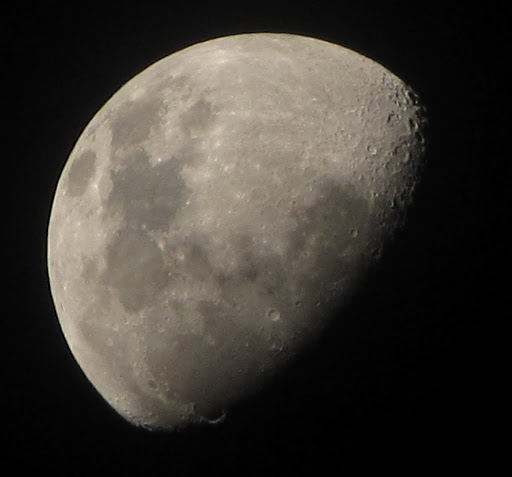
Thursday, February 10, 2011


Sunday, October 10, 2010
Access Localhost Web Server (Host) through VirtualBox
Say that you want to install RHEL on a virtual machine in VirtualBox using the HTTP method (via network). Then you can setup a repository on your localhost using the first 4 of your 5 RHEL installation CDs and then add them to the local web server and access them through NAT in VirtualBox.
- After copying all the binaries (from first 4 CDs) to the preferred location, configure the httpd.conf located at /etc/httpd/conf/ (in Fedora 13) by assigning an alias to the copied location.
- eg:
<directory>
Options Indexes
AllowOverride None
Order allow,deny
Allow from all
</directory>
- Boot the virtual machine using the first RHEL cd and at the boot screen type "linux askmethod" (without quote) and press
- Select the HTTP method from the menu when asked
- Enter 10.0.2.2 as the IP address and the alias as the location ("install" in this case)
- The installation should pick up the repository and you are good to go. :)
Good Luck!
Thursday, October 7, 2010
GNOME-MPlayer Error: (VDPAU backend libvdpau_nvidia.so)
Error: Failed to open VDPAU backend libvdpau_nvidia.so: cannot open shared object file: No such file or directory
The above error occurred in my gnome-mplayer in Fedora 13 (I didn't get this error in Ubuntu 10.04) and I guess the problem is that I don't have the resource that it is looking for as its output. If you have NVIDIA Video driver you may have not encountered with the problem.
However, a little setting can sort out the problem as follows;
Your problem should have been resolved.
Good Luck!!!
The above error occurred in my gnome-mplayer in Fedora 13 (I didn't get this error in Ubuntu 10.04) and I guess the problem is that I don't have the resource that it is looking for as its output. If you have NVIDIA Video driver you may have not encountered with the problem.
However, a little setting can sort out the problem as follows;
- Open Edit -> Preferences or just press CTRL + P
- That will open up the preferences and select the "Player" tab
- Select (or enter) "xv" (without quotes) for the Video Output
- Close preferences and try to open the video file again.
Your problem should have been resolved.
Good Luck!!!
Saturday, September 25, 2010
How to extract a .daa file in Ubuntu and Windows
.dda is image file type primarily used by PowerISO Inc. (As far as I know)
It cannot be read using default Ubuntu applications. Following is how you can extract a .dda image.
Hi,
I found the solution. Actually I didn't know that .dda is an old type. However, to someone doesn't know;
For Windows;
There is no official PowerISO version by the PowerISO Inc. The existing Linux version (not official according to my knowledge. Please correct me if I am wrong) of that seems to be having problems according to the sources. Instead You can use AcetoneISO in Ubuntu.
It cannot be read using default Ubuntu applications. Following is how you can extract a .dda image.
Hi,
I found the solution. Actually I didn't know that .dda is an old type. However, to someone doesn't know;
For Windows;
- PowerISO itself can be used for this (I don't know the method since I don't have it on my Linux box)
There is no official PowerISO version by the PowerISO Inc. The existing Linux version (not official according to my knowledge. Please correct me if I am wrong) of that seems to be having problems according to the sources. Instead You can use AcetoneISO in Ubuntu.
- Download acetoneiso. In Ubuntu you can use apt-get. sudo apt-get install acetoneiso. It should be there in newer repositories.
- After initial configuration, go to "Image Conversion" in the main menu.
- Select "Convert MacOs Image" and follow the instructions.
Subscribe to:
Posts (Atom)